Getting started with Qjam
Tour
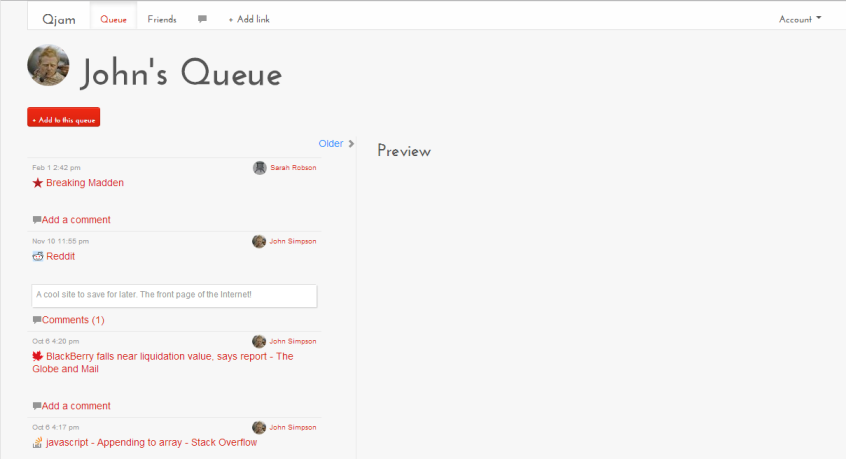
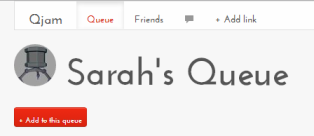
The upper part of the page contains the menu bar, with your queue, friends list, comments feed, and the add link action. On the right under account you can access your preferences and log out.
Under the name of the queue you're currently viewing is a quick add button. Below this you'll see the link list and the preview area.
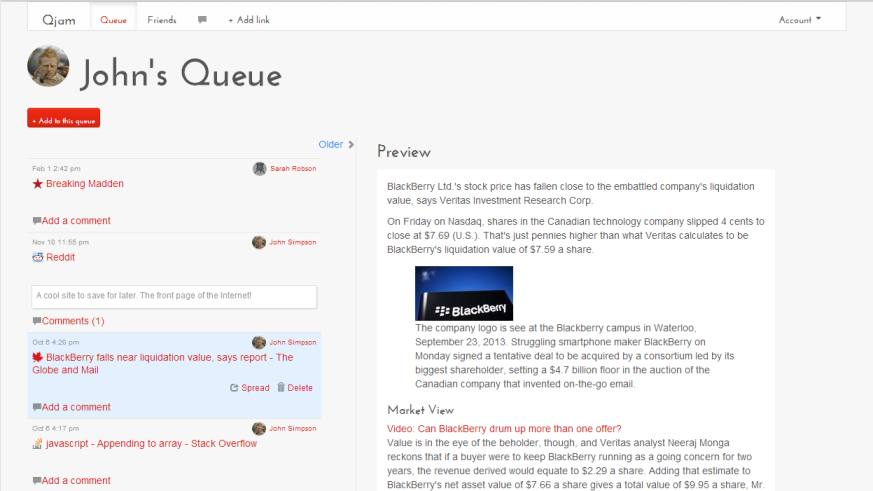
Preview
To preview a link, click in its box.
Comments
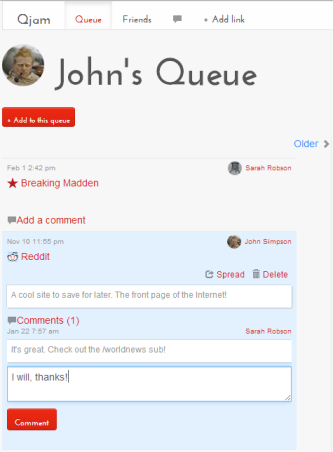
You can view and post comments on links by clicking the Add a comment link.
Adding links
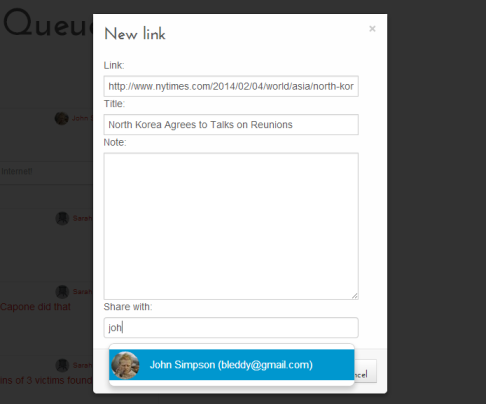
New links can be added by clicking either one of the share buttons. On the main menu, you can send a link to any of your friends by clicking + Add link. You can add a link directly to the queue you're currently viewing by clicking the + Add to this queue button below the owner's name.
Whichever way you send a link, you can always add or remove users from the list of recipients. Qjam will autocomplete names of your friends in the Share with box.